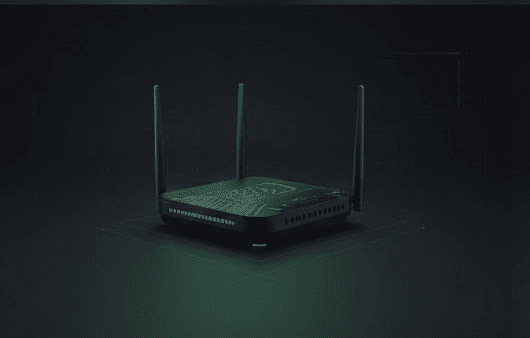
WiFi dead zones happen when your wireless signal can't penetrate walls, floors, or furniture between your router and devices. The most common causes are poor router placement, interference from other electronics, and physical barriers like concrete walls that block radio waves.
Quick Answer
- Move your router to the center of your house, elevated position, away from closets
- Change WiFi channels - use 1, 6, or 11 for 2.4GHz networks
- Add mesh nodes halfway between router and dead zones (not in the dead zone itself)
- Use wired backhaul if you have ethernet cables between mesh points
- Switch to 5GHz or 6GHz bands for less congestion in dense areas
Symptoms
- WiFi bars drop to 1-2 in certain rooms
- Devices constantly disconnect and reconnect
- Streaming buffers or stops in specific areas
- Smart home devices go offline intermittently
- File uploads/downloads crawl in parts of the house
- Video calls drop when you move to certain rooms
Quick Checks
- Walk your house with WiFi analyzer app - note areas showing -70dBm or weaker
- Check router location - should be central, elevated, not enclosed in cabinet
- Count physical barriers - each wall/floor between router and device weakens signal
- Identify interference sources - microwaves, baby monitors, Bluetooth speakers on 2.4GHz
- Test 5GHz vs 2.4GHz - switch between bands to see which performs better
Step-by-Step Fix
-
Download WiFi analyzer app on your phone (WiFi Explorer, NetSpot, or WiFi Analyzer)
-
Map your current coverage by walking through each room and noting signal strength. Mark areas below -70dBm as problem zones.
-
Reposition your main router:
- Move to center of house if possible
- Elevate 4-6 feet off ground
- Keep away from walls, cabinets, metal objects
- Point antennas vertically
-
Change WiFi channels to reduce interference:
- Access router settings (usually 192.168.1.1 or 192.168.0.1)
- Navigate to Wireless Settings -> Channel
- 2.4GHz: Select channel 1, 6, or 11 only
- 5GHz: Enable DFS channels for less congestion
-
Add mesh nodes for persistent dead zones:
- Place first mesh node halfway between router and dead zone
- Keep 30-50 feet between mesh points
- Avoid placing nodes inside the actual dead zone
- House sizing: Under 2000 sqft = 2-pack, 2000-4000 sqft = 3-pack, 4000+ sqft = 3-pack plus additional nodes
-
Connect ethernet backhaul if available:
- Run ethernet cable from router to each mesh node
- Configure nodes for wired backhaul in mesh app
- This eliminates wireless hop losses between nodes
-
Test and adjust placement using WiFi analyzer app to confirm coverage improvement
If WiFi Dead Zones Still Occur
Try different mesh node positions - move nodes 10-15 feet in different directions and retest signal strength.
Switch to WiFi 6E or 7 systems with 6GHz band support for less congested spectrum, though range will be shorter.
Consider powerline adapters for problem areas where mesh nodes can't reach effectively.
Add dedicated access point in stubborn dead zones using ethernet or MoCA connection.
Check for interference sources - turn off microwaves, baby monitors, and other 2.4GHz devices during testing.
Upgrade to higher-gain antennas if your router supports replaceable antennas.
Is Your WiFi Keeping Up with Your Smart Home?
Smart home devices — especially cameras, locks, and doorbells — are notorious for Wi-Fi issues. Our mesh WiFi buying guide covers the best systems for high device counts, including which routers have IoT network isolation and Thread/Matter support built in.
FAQ
How far apart should mesh nodes be placed? Keep mesh nodes 30-50 feet apart with minimal walls between them. Place the first node halfway between your router and dead zone, not in the dead zone itself.
Will concrete or brick walls affect WiFi signal? Yes significantly. Concrete and brick walls can reduce WiFi signal by 50% or more per wall. Steel and metal construction creates even worse interference.
Should I use 2.4GHz or 5GHz for better coverage? 2.4GHz travels farther and penetrates walls better but has more interference. 5GHz offers faster speeds with shorter range. Modern mesh systems automatically steer devices to the best band.
Can I mix different mesh system brands? No. Mesh nodes must be from the same manufacturer and product line to work together. Different brands use incompatible mesh protocols and won't create a unified network.
Recommended Products: Eero Pro 6E Mesh System (paid link) Netgear Orbi AX6000 (paid link)
Paid link: GearGuiders may earn a commission at no extra cost to you.